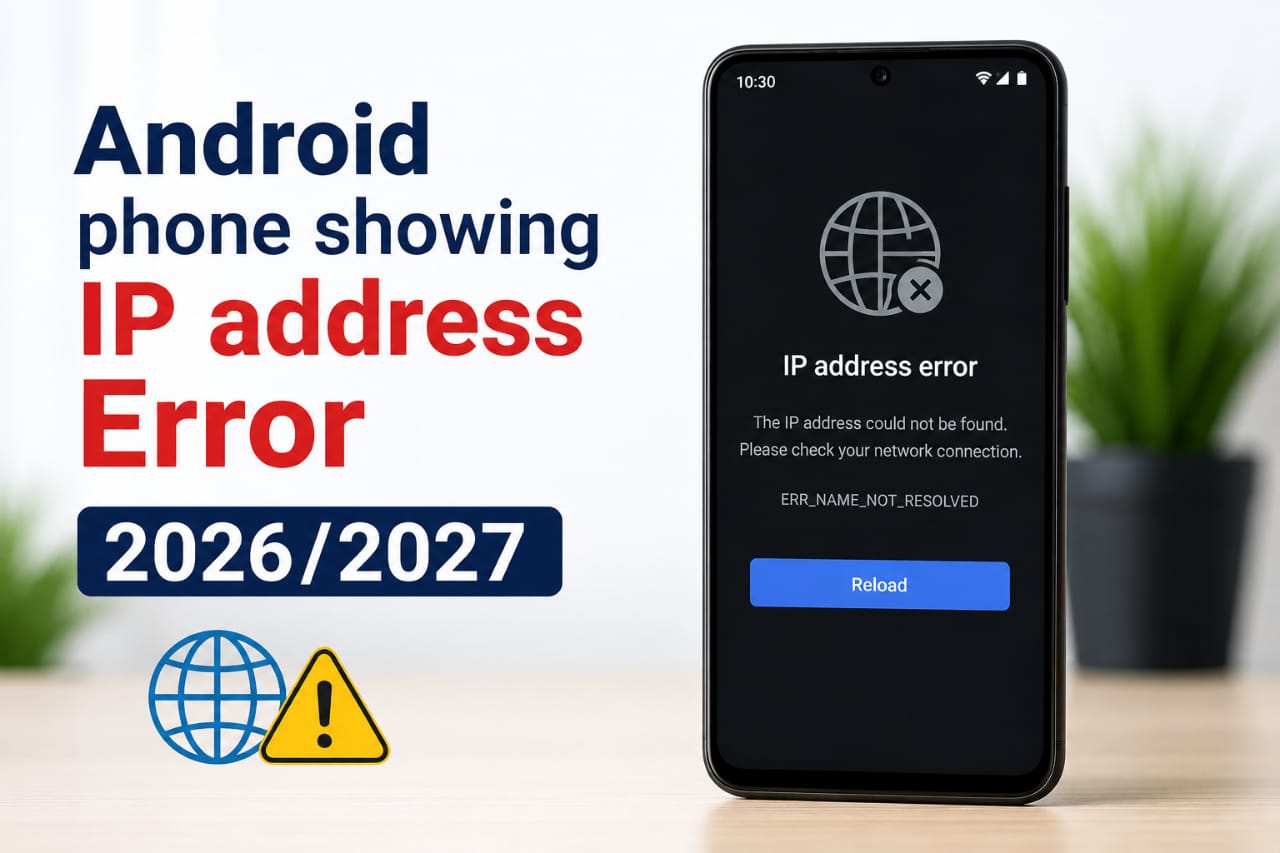
How to Fix IP Address Not Working on Android in 2026/2027-Easy Solutions: Complete Step-by-Step Guide, Learn how to fix Android Phone showing IP address Error in 2026/2027. Discover practical solutions for Wi-Fi, mobile data, DNS, VPN, and network configuration issues.
Introduction to How to Fix IP Address Not Working on Android Phones in 2026/2027
One of the most frustrating problems Android Phone users experience is android-phone-showing-IP-address-error or “Obtaining IP Address error” or situations where an IP address fails to work correctly. When this happens, your phone may refuse to connect to Wi-Fi, fail to browse the internet, display connection errors, or repeatedly disconnect from networks.
In 2026 and 2027, Android devices have become more advanced, but network-related issues still occur due to router settings, DNS conflicts, VPN configurations, ISP restrictions, software bugs, and incorrect IP assignments and even Internet Service Providers Throttling (ISP Throttling).
The good news is that most IP address problems can be fixed within a few minutes without requiring professional technical support.
This comprehensive guide explains what causes IP address issues on Android Phones and provides practical step-by-step procedures to restore your internet connection. Bookmark this page for your day to day internet problems and solutions.
What Is an IP Address?
An Internet Protocol (IP) address is a unique numerical identifier assigned to a device connected to a network.
Your Android phone receives an IP address whenever it connects to:
- Wi-Fi networks
- Mobile data networks
- Public hotspots
- Office networks
- Home broadband routers
Without a valid IP address, your phone cannot communicate with websites, applications, or online services. But then many has witnessed Error messages during their browsing time, this guide, How to Fix IP Address Not Working on Android in 2026/2027-Easy Solutions will be an eye opener to some of the error problems you experience.
Common Signs of IP Address Problems on Android
You may have an IP-related issue if you notice any of the following:
- Stuck on “Obtaining IP Address”
- Connected to Wi-Fi but no internet
- Failed network authentication
- Unable to load websites
- VPN connection failures
- Random disconnections
- DNS server errors
- Apps showing network unavailable messages
- Slow or unstable internet connection
Read and understand some IP Address is and How to Fix IP Address Not Working on Android in 2026/2027-Easy Solutions.
Why IP Address Is Not Working on Android
Before applying fixes, it is wise we help you to understand what causes the issue.
Common reasons include:
1. Router Configuration Errors
The router may fail to assign an IP address correctly.
2. DHCP Server Issues
The Dynamic Host Configuration Protocol (DHCP) service automatically provides IP addresses.
When DHCP stops working, Android devices cannot obtain a valid IP address.
3. DNS Configuration Problems
Incorrect DNS settings can prevent internet access even when an IP address is assigned.
4. VPN Conflicts
Many VPN applications interfere with Android networking settings.
5. Android Software Bugs
Operating system glitches can affect network communication.
6. MAC Address Filtering
Some routers block specific devices from connecting. Once a device is blocked, it will be difficult to connect to the Wi Fi again.
7. ISP Restrictions
Internet Service Providers may temporarily restrict access due to network issues.
8. Corrupted Network Settings
Improper network modifications can break IP assignment processes. Most settings that people do especially while using VPN Sometimes breaks their internet connection.
Method 1: Restart Your Android Device
The simplest solution often works.
Steps
- Press and hold the Power button.
- Select Restart.
- Wait for the phone to reboot.
- Reconnect to Wi-Fi.
Why It Works
Restarting refreshes networking services and clears temporary connection errors.
Method 2: Restart Your Router
Router issues account for many IP assignment failures.
Steps
- Turn off the router.
- Disconnect power for 60 seconds.
- Reconnect power.
- Wait until all lights stabilize.
- Connect your Android phone again.
Troubleshooting Connectivity Issues with 192.168.0.1 IP Address
Having trouble? Here are some troubleshooting steps to resolve the issue and reset it.
- Verify your IP address; you might be using the wrong one!
- Check your network connectivity, and make sure your device is connected to the router.
- If you continue to have issues, restart your router using the RESET button and the device that is accessing the interface.
- Clear browsing cache as sometimes they can interfere with access and try again.
- Ensure that any VPN (Virtual Private Network) connections are disabled, as they can interfere with access.
- If none of these troubleshooting steps work, contact the manufacturer for further assistance and follow their links.
Why It Works
This refreshes the DHCP server responsible for assigning IP addresses. Most times once the number of connections allowed on a Wi Fi is exceeded, it forces some devices to disconnect, thereby creating room for new devices to connect while disconnecting the original user’s. This issue has happened in my work place, where most of the worker’s suppress Desktop connections making way for their Mobile phones to connect. Another scenario is in Bet9ja shops, most customers click on the Wi Fi network properties to obtain the security of the Wi Fi, which in-turn disconnects some connected systems from the Wi Fi.
Method 3: Forget and Reconnect to Wi-Fi
Corrupted network profiles can cause repeated IP failures.
Steps
- Open Settings.
- Tap Network & Internet.
- Select Wi-Fi.
- Tap the connected network.
- Choose Forget Network.
- Reconnect using the correct password.
- OR better still change the Password to disconnect every connected device, especially in a bet shop where massive tampering occurs.
- You can use admin as default password after typing the IP Number written on Wi Fi, from there you can see number of connected device’s
Result
Android creates a fresh network profile.
Method 4: Enable and Disable Airplane Mode
This quickly resets mobile network connections.
Steps
- Swipe down Quick Settings.
- Enable Airplane Mode.
- Wait 30 seconds.
- Disable Airplane Mode.
- Test your connection.
Method 5: Change DHCP to Static IP
If DHCP is malfunctioning, manually assigning an IP address can help.
Steps
- Open Wi-Fi settings.
- Select your network.
- Tap Advanced Options.
- Change IP Settings from DHCP to Static.
Enter:
- IP Address: 192.168.1.100
- Gateway: 192.168.1.1
- DNS 1: 8.8.8.8
- DNS 2: 8.8.4.4
Save the settings.
Why It Works
You bypass the router’s automatic IP assignment process.
Method 6: Change DNS Settings
DNS problems often appear as IP address failures.
Recommended DNS Servers
Google DNS
- 8.8.8.8
- 8.8.4.4
Cloudflare DNS
- 1.1.1.1
- 1.0.0.1
Steps
- Open Wi-Fi settings.
- Edit your connection.
- Configure DNS manually.
- Save changes.
Method 7: Disable VPN Services
VPN applications may interfere with network routing.
Steps
- Open Settings.
- Tap VPN.
- Disconnect all active VPNs.
- Restart your device.
- Reconnect to the network.
Why It Works
VPNs modify routing tables and DNS requests.
Method 8: Reset Network Settings
This is one of the most effective fixes.
Steps
- Open Settings.
- Select System.
- Tap Reset Options.
- Choose Reset Wi-Fi, Mobile & Bluetooth.
- Confirm reset.
Result
All networking configurations return to factory defaults.
Method 9: Update Android Software
Network bugs are often fixed through system updates.
Steps
- Open Settings.
- Select Software Update.
- Check for updates.
- Install available updates.
Method 10: Check Router Device Limits
Some routers limit the number of connected devices.
Steps
- Access router admin settings.
- Check connected devices.
- Remove unused devices.
- Save changes.
Method 11: Disable MAC Address Randomization
Some networks reject randomized MAC addresses.
Steps
- Open Wi-Fi settings.
- Select your network.
- Privacy Settings.
- Choose Device MAC.
- Reconnect.
Method 12: Test Another Wi-Fi Network
Determine whether the problem comes from:
- Your Android phone
- Your router
- Your ISP
Connect to:
- Public Wi-Fi
- Office Wi-Fi
- Another home network
Method 13: Remove Third-Party Network Apps
Applications that can interfere include:
- VPN apps
- Firewall apps
- Network boosters
- Security suites
- Ad blockers
Temporarily uninstall them and test connectivity.
Method 14: Flush Android Network Cache
Certain Android versions allow clearing cached network data.
Steps
- Open Settings.
- Apps.
- Show System Apps.
- Locate Network Services.
- Clear Cache.
Restart the device afterward.
Method 15: Factory Reset (Last Resort)
If every method fails, a factory reset may resolve deep software corruption.
Important
Back up:
- Photos
- Contacts
- Documents
- Apps
Steps
- Settings.
- System.
- Reset Options.
- Erase All Data.
READ ALSO:
How I Fixed Platform Restriction in Nigeria Using VPN in 2026
Cubana Chief Priest in 2026: Lifestyle & Social Life and Why he is Trending
Pamela Jo Bondi Biography and Trending story 2026 (Legacy, Complete Story and Post-firing Status)
Advanced Fix for Tech-Savvy Users
Configure Private DNS
Android now supports encrypted DNS services.
Steps
- Open Settings.
- Network & Internet.
- Private DNS.
Use:
dns.google
or
1dot1dot1dot1.cloudflare-dns.com
This improves:
- Privacy
- Security
- DNS reliability
Or visit : https://help.veepn.com/hc/en-us/articles/19524656954642-How-to-Fix-VPN-Connection-Issues-on-Android
How to Prevent IP Address Issues in the Future
Follow these best practices:
Keep Android Updated
Install updates regularly.
Reboot Your Router Weekly
A simple restart improves network stability.
Use Reliable DNS Providers
Google DNS and Cloudflare DNS remain industry standards.
Avoid Too Many VPN Applications
Multiple VPNs often create routing conflicts.
Monitor Router Firmware Updates
Manufacturers release patches for networking bugs.
Remove Unused Networks
Delete old Wi-Fi profiles from your device.
Best DNS Servers for Android in 2026/2027
| Provider | Primary DNS | Secondary DNS |
|---|---|---|
| Google DNS | 8.8.8.8 | 8.8.4.4 |
| Cloudflare | 1.1.1.1 | 1.0.0.1 |
| Quad9 | 9.9.9.9 | 149.112.112.112 |
| OpenDNS | 208.67.222.222 | 208.67.220.220 |
When Should You Contact Your ISP?
Contact your internet provider if:
- Multiple devices cannot connect.
- Internet outages occur frequently.
- DNS failures persist.
- Router troubleshooting fails.
- Network authentication errors continue.
The issue may be originating from the ISP’s infrastructure.
Final Thoughts/Conclusion
IP address problems on Android devices are usually caused by router errors, DNS conflicts, VPN interference, or incorrect network settings. Fortunately, most issues can be resolved using simple troubleshooting methods such as restarting your router, resetting network settings, changing DNS servers, or manually assigning a static IP address.
By following the practical solutions outlined in this guide, Android users in 2026 and 2027 can quickly restore connectivity and enjoy stable internet access without costly repairs or technical support.
Frequently Asked Questions (FAQs)
Why does my Android keep saying obtaining IP address?
The router may be unable to assign a valid IP address due to DHCP issues, router bugs, or network congestion.
Is changing DNS safe?
Yes. Using trusted DNS providers like Google DNS and Cloudflare DNS is generally safe and may improve performance.
Can a VPN cause IP address problems?
Yes. VPN applications can interfere with routing and DNS settings, resulting in connection failures.
What is the best DNS for Android in 2026?
Cloudflare (1.1.1.1) and Google DNS (8.8.8.8) remain among the most popular choices.
Will resetting network settings delete my files?
No. It only removes saved Wi-Fi networks, Bluetooth connections, and mobile network configurations.
Can outdated Android software cause network issues?
Yes. Software bugs can affect networking components and IP address assignment.
Should I use Static IP or DHCP?
For most users, DHCP is recommended. Static IP addresses should only be used when troubleshooting or when specifically required by a network administrator.
Router settings encompass a range of configurations that govern the behavior and functionality of a router server. Understanding these settings and the admin panel is crucial for effectively managing your network and helps to prevent Android Phone showing IP address Error.
Wireless Network Settings: Within the router settings, you can manage your wireless network (Wi-Fi) settings. This includes setting the network name (SSID), enabling or disabling broadcasting of the network name, choosing the appropriate security protocol (WPA2, WPA3), and setting a strong network password. These settings help secure and control access to your wireless network.
Security Settings: Router security settings protect your network from unauthorized access. After you have accessed your router IP, changing the default router username and default router passwords is important for re-accessing the settings. You can also enable features like firewall protection, MAC (Media Access Control) address filtering, and VPN (Virtual Private Network) settings to enhance Wi Fi network security.
Firmware Updates: Regularly updating your router’s firmware is vital for ensuring optimal performance, stability, and security.
Guest Network Settings: Tons of modern routers offer an option to set up a guest profile, providing separate Wi Fi access for visitors without granting them access to your main system. You can configure this through your admin settings.
Finally…
Once you have familiarized yourself with the IP address and the process of logging into routers using it as the default gateway, you can confidently access the router’s admin panel. Within this panel, you have the power to modify various settings, enhancing both the security and speed of your network and preventing Android Phone showing IP address Error on your own.
Do well to share this information with your friends who might be having this issues fixing their internet connections at home, Bookmark this site in order to receive more updates on VPN and Internet Optimization Technics and Procedures which will prevent Android Phone showing IP address Error in 2026/2027.